

MiniMax H3 dialogue not working can mean several different things: the character speaks gibberish before the intended line, the wrong person delivers a sentence, a silent character suddenly starts talking, a voice reference does not carry over correctly, or the lips continue moving after the dialogue ends.
These problems are especially noticeable because MiniMax H3 generates video and sound together. Dialogue, ambience, music, character movement, camera direction, and reference media can all be part of the same generation request. That makes H3 powerful, but it also means an ambiguous audio instruction can affect more than the voice alone.
The solution is usually not to make the prompt longer. It is to make the relationship between character, speaker, dialogue, audio reference, and silence more explicit.
This guide breaks down the most common MiniMax H3 dialogue problems, explains what may be causing them, and provides practical prompt structures you can test immediately.
Why Is MiniMax H3 Dialogue Not Working?
Before changing a prompt, identify the actual failure.
“MiniMax H3 dialogue not working” is not a single bug. At least six different problems can produce a bad result.
Problem | What You See or Hear | What to Check First |
|---|---|---|
Gibberish at the start | Short clipped or meaningless speech before the line | Dialogue timing and audio-reference setup |
Wrong speaker | Character B says Character A's line | Stable S1/S2 assignments |
Random talking | Speech appears during intended silence | Explicit silence and mouth-state instructions |
Voice mismatch | Dialogue uses the wrong voice | Audio reference mapped to a specific speaker |
Bad lip sync | Mouth motion does not match the line | Speaker identity and physical speaking instruction |
Dialogue runs too long | Character keeps speaking or moving lips | Clear end of speech and post-dialogue action |
The first step is therefore to stop treating every audio failure as a generic “prompt adherence” problem.
If Character A uses one voice, Character B uses another voice, a soundtrack plays underneath them, and the camera cuts between two shots, MiniMax H3 needs to know exactly which audio information belongs to which source.
Fix 1: Give Every Speaker a Stable S1 or S2 ID
One of the most important fixes for MiniMax H3 wrong speaker problems is consistent speaker numbering.
A useful structure is:
Character A = S1
Character B = S2
Narrator = S3
Once you assign those IDs, do not change them later in the prompt.
For example:
Better prompt:
A young woman in a red jacket (S1) stands beside the window. She looks at the man and says, [English] We need to leave before sunrise.
The older man in a grey coat (S2) turns toward her and replies, [English] Then we leave now.
After S2 finishes speaking, both characters remain silent.
This is much clearer than:
Weaker prompt:
The woman says we should leave. Then the man answers that they should go now.
The second version tells MiniMax H3 what happens narratively, but it provides less structure for assigning the actual vocal events.
Why Stable Speaker IDs Matter
Think of (S1) and (S2) as audio identities rather than character numbers.
A visible subject can have:
an appearance,
an action,
a location,
and a speaker identity.
Keeping speaker identity stable helps MiniMax H3 distinguish who is physically producing each line.
This becomes increasingly important in two-character interviews, short dramas, reaction scenes, product demonstrations, and dialogue-heavy social videos.
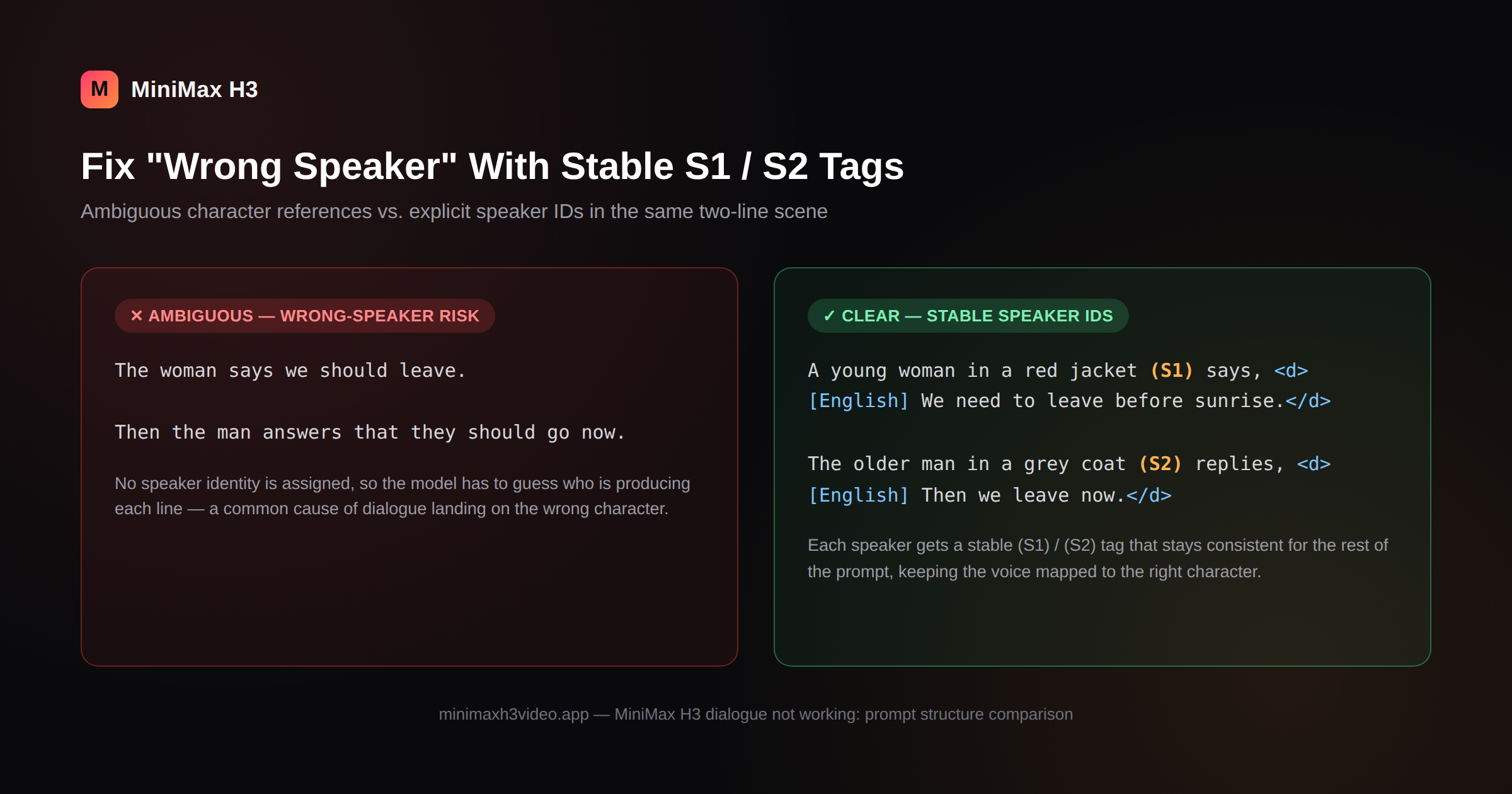
Ambiguous character references vs. stable S1/S2 speaker tags in the same two-line scene.
Fix 2: Put Spoken Words Inside Clear Dialogue Tags
A common reason for MiniMax H3 dialogue not working is mixing dialogue with ordinary scene description.
Instead of writing:
The woman angrily tells him I told you not to come back here and then walks away.
Separate the physical action from the words that should actually be spoken:
The woman (S1) turns sharply toward the man. Her voice is quiet but angry. She says, [English] I told you not to come back here. She closes her mouth, turns away, and walks toward the door.
This gives the model three separate instructions:
who speaks;
exactly what is spoken;
what happens after the line ends.
That final step matters.
Without it, the model may treat the remaining duration as part of the speaking performance.
A Reusable MiniMax H3 Dialogue Formula
Use this structure:
[Character description] + (speaker ID) + [delivery] + says + dialogue + [mouth closes] + [next physical action]
Example:
The female detective (S1) speaks in a controlled, low voice and says, [English] Nobody leaves this room. When the final word ends, her lips close completely. She keeps her eyes on the suspect while the room becomes silent.
This formula is especially useful when MiniMax H3 keeps adding unwanted vocalization after a line.
Fix 3: Explicitly Define What Happens After the Dialogue
One of the easiest MiniMax H3 mistakes is describing what should happen while someone talks but not describing what should happen when the speech stops.
Suppose the clip lasts 10 seconds and the dialogue only occupies the first four seconds.
If the rest of the prompt simply says:
She looks into the camera and says, [English] Welcome to the future.
the model still has several seconds of video and audio to generate.
A stronger prompt defines the remaining state:
The presenter (S1) looks directly into the camera and says, [English] Welcome to the future. Her line ends naturally. Her lips close completely. For the rest of the shot she remains silent, gives a small confident smile, and turns her eyes toward the product. Only quiet room ambience remains audible.
That final sentence is useful for MiniMax H3 random talking because it defines the intended sound after the dialogue instead of leaving that portion unspecified.
Useful Silence Phrases
Try language such as:
remains completely silent
no further speech is heard
his lips remain closed
her jaw stops speaking motion
only room ambience remains audible
neither character speaks during this section
no voiceover or background conversation
the final seconds contain environmental sound only
These instructions are especially useful for dialogue scenes with pauses.
Fix 4: Map Each Audio Reference to the Correct Character
Voice-reference mistakes are another frequent cause of MiniMax H3 dialogue not working. MiniMax H3 can use reference audio for more than simply replaying sound.
An audio reference may be intended for:
voice timbre,
delivery style,
music,
rhythm,
dialogue content,
ambience,
or reused source audio.
That distinction matters.
If you upload an audio clip containing a person’s voice but never explain what the file should control, the relationship can become ambiguous.
For a voice reference, use a structure such as:
Subject definition:
<Subject 1> is the woman shown in Picture 1.
<Audio 1> is the voice-timbre reference for <Subject 1> (S1).
Then later:
<Subject 1> (S1) looks into the camera and says, [English] This is exactly what I was looking for.
The important part is that the audio reference, visible character, and speaker ID all point toward the same target.
Voice Reference Is Not the Same as Audio Reuse
This distinction can prevent many MiniMax H3 audio reference problems.
If you want the model to use the voice characteristics of an audio clip but speak new words, describe the file as a voice-timbre reference.
If you actually want the original audio track to remain in the target video, that is closer to audio reuse.
Those are different instructions.
Avoid vague wording such as:
“Use Audio 1 for the video.”
Instead say exactly what it provides:
Use Audio 1 only as the voice-timbre reference for S1.
Preserve Audio 2 as background music.
Do not copy the spoken words from Audio 1.
Generate the new dialogue written in the prompt.
Audio 1 controls vocal timbre and delivery only.
The more clearly each audio source has one role, the easier it becomes to diagnose a failed generation.
Fix 5: Keep Two-Character Dialogue Sequential
Multi-character dialogue is one of the easiest situations in which a MiniMax H3 wrong speaker problem can appear.
For a short scene, avoid writing all dialogue in a single paragraph.
Instead, make the speaking order explicit.
Two-Speaker Prompt Example
The woman in the black coat is S1. The man wearing the white shirt is S2.
S1 looks toward S2 and says, [English] Did you bring it? S1 finishes the line and closes her mouth completely.
S2 pauses briefly, looks down at the envelope in his hand, then replies, [English] I brought everything. S2 finishes speaking and closes his mouth.
S1 does not speak during S2’s line. S2 does not speak during S1’s line. No background voices are present.
This may look repetitive to a human reader, but that repetition serves a purpose: it removes ambiguity about the vocal timeline.
Avoid Speaker Reassignment
Do not write:
Shot 1: Woman = S1, Man = S2
Shot 2: Man = S1, Woman = S2
Speaker IDs should stay stable across shots.
If S1 is the woman at the beginning, she should remain S1 later.
This is particularly important when using multiple reference images or audio clips.
Fix 6: Separate Dialogue, Ambience, and Music
Another useful approach when MiniMax H3 dialogue is not working is to stop describing every sound in the same sentence.
A cinematic scene may contain:
spoken dialogue,
footsteps,
wind,
traffic,
music,
breathing,
doors,
room tone.
These layers do not all perform the same function.
A clearer structure is:
Dialogue
The young man (S1) says, [English] I’ll meet you downstairs.
Physical Sound
Soft footsteps cross the wooden floor. A distant elevator bell rings once.
Ambient Sound
Quiet apartment room tone with faint city traffic through the window.
Music
No non-diegetic music.
This helps prevent the prompt from accidentally implying that background audio should contain vocal content.
If the scene should be completely free of music, say so directly.
If the scene should contain no speech after a line finishes, define the remaining ambience rather than leaving the audio space empty.
Fix 7: Shorten the Dialogue Before Adding More Prompt Detail
When a MiniMax H3 dialogue generation fails, many users respond by making the prompt dramatically longer.
That is not always the best move.
If a 10-second video contains several sentences, two speakers, camera movement, character motion, sound effects, and music, the model must satisfy many synchronized events within a small timeline.
Try simplifying the dialogue first.
Instead of:
[English] I don’t think this is the right place because the address you sent me says the building should be somewhere on the other side of the river.
Test:
[English] This isn’t the place. The address is across the river.
Once the short version works, gradually restore complexity.
This method helps determine whether the issue comes from:
speaker mapping,
dialogue duration,
reference audio,
timing,
or overall prompt complexity.
A diagnostic prompt should be simpler than the final production prompt.
MiniMax H3 Gibberish at the Beginning: What Can You Try?
One of the more specific forms of MiniMax H3 dialogue not working is a brief clipped or unintelligible vocal sound near the start of a video.
Reports of this behavior have appeared in current community discussions, including generations where the intended dialogue begins after the unwanted sound.
There is not yet a universal prompt-level fix that guarantees the issue disappears.
That distinction is important.
Some users have reported better results after changing dialogue formatting or regenerating with a different seed, while others continue to see the behavior under similar conditions. Treat those approaches as troubleshooting experiments rather than guaranteed fixes.
A practical testing sequence is:
Generate the same scene without any audio reference.
Reduce the scene to one speaker.
Keep the first second explicitly silent.
State that the character’s lips remain closed before the dialogue begins.
Test a shorter dialogue line.
Add the voice reference only after the basic dialogue works.
Regenerate before rewriting the entire prompt.
For example:
For the first 1.0 second, the woman remains completely silent with her lips closed. Only quiet indoor room tone is audible.
After the pause, the woman (S1) looks toward the camera and says, [English] You’re early.
When the line ends, her lips close again and the room returns to silence.
This does not guarantee that every generation will be artifact-free, but it creates a much cleaner diagnostic test.
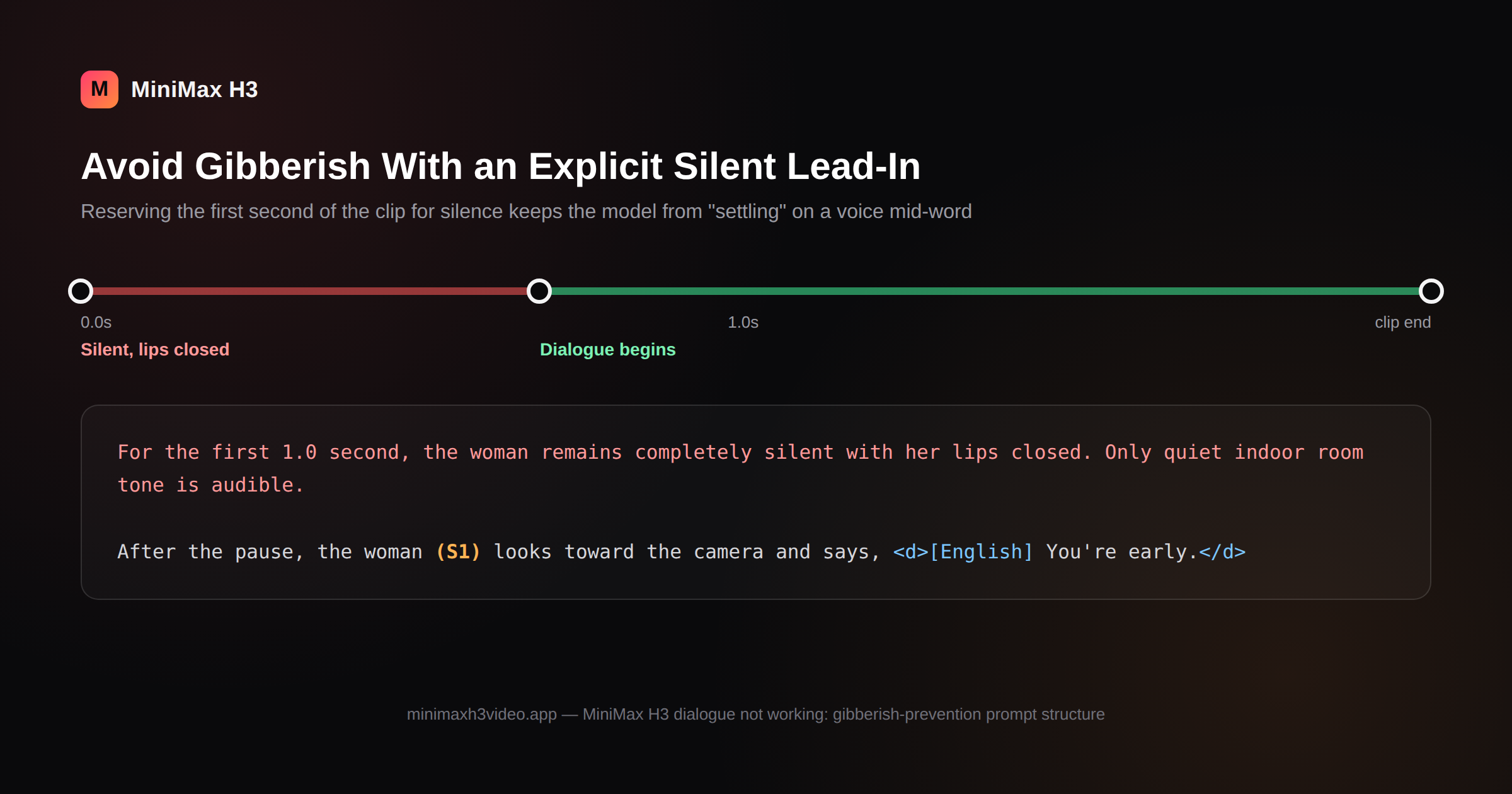
Reserving the first second for explicit silence keeps the model from “settling” on a voice mid-word.
How to Stop MiniMax H3 From Talking When Nobody Should Speak
Another common MiniMax H3 dialogue problem is unwanted speech: the model starts talking even when the scene should remain silent. If you want a video with sound but no dialogue, do not rely only on removing dialogue from the prompt.
Specify the desired audio state.
For example:
A woman walks alone through a rain-soaked street at night. She never speaks. Her mouth remains naturally closed throughout the entire shot. No narration, dialogue, whispering, singing, radio voice, or background conversation is audible. The soundtrack contains only rain, distant traffic, footsteps on wet pavement, and a low cinematic instrumental score.
This tells the model what replaces speech.
Compare that with:
Woman walking through rainy street. Cinematic. No dialogue.
The second version provides far fewer constraints.
No-Dialogue Prompt Template
Use:
No character speaks at any point in the video. All visible mouths remain naturally closed except for normal breathing and facial expression. No narration, whispering, singing, background speech, or vocalization is audible. The soundscape contains only [AMBIENCE] and [SOUND EFFECTS].
This is useful for:
product videos,
fashion films,
landscape clips,
cinematic B-roll,
UI animations,
silent character reactions.
How to Fix MiniMax H3 Lip Sync Problems
A MiniMax H3 lip sync problem can sometimes come from unclear speaker definition rather than the facial animation itself.
Make it explicit that the visible character is physically producing the speech:
The woman (S1) physically speaks the line while looking toward the camera. Her mouth movements synchronize naturally with every spoken word.
Then define the end:
Immediately after the final word, her lips meet naturally and remain closed.
For voiceover, do the opposite.
If the voice is off-screen, make sure the visible person’s mouth does not move:
The male narrator (S1) says in an off-screen voiceover, [English] Every journey begins with a single decision. The woman visible on screen does not speak and her lips remain completely closed.
Without this distinction, a model may associate any audible voice with the most visually prominent face.
Complete MiniMax H3 Dialogue Prompt Example
If dialogue problems mainly appear in multi-speaker scenes, try this structured two-character MiniMax H3 prompt.
Scene
A detective questions a suspect in a dark office.
Prompt
Create a realistic cinematic interrogation scene with two clearly separated speakers.
The female detective wearing a dark navy jacket is S1. She has a calm, controlled voice.
The seated male suspect wearing a grey shirt is S2. He has a quiet, nervous voice.
[Shot 1] Medium shot of S1 standing beside the table while S2 sits opposite her. A desk lamp provides the main light. Quiet ventilation hum and distant rain are audible. No music.
S1 looks directly at S2 and says in a controlled tone, [English] Where were you last night?
S1 finishes the sentence. Her lips close completely and she remains silent.
The camera slowly pushes toward S2.
S2 hesitates for one second without speaking. He looks down, then raises his eyes toward S1 and says, [English] I was at home.
S2 finishes the line and closes his mouth.
S1 does not speak during S2’s line. S2 does not speak during S1’s line.
After the final dialogue, both characters remain silent. Only the ventilation hum and soft rain remain audible.
This structure separates:
visual identity,
speaker identity,
speaking order,
dialogue,
silence,
camera movement,
ambience.
That makes failures easier to diagnose.
MiniMax H3 Dialogue Troubleshooting Checklist
If the MiniMax H3 dialogue issue persists after trying the fixes above, check the prompt in this order:
1. Is every speaker assigned one stable ID?
Use S1, S2, S3 and keep them consistent.
2. Is the exact spoken sentence clearly isolated?
Avoid hiding dialogue inside a long visual paragraph.
3. Do you say who physically speaks?
Do not assume the model will infer the correct face.
4. Is each audio reference given a specific job?
Define whether it controls voice timbre, music, rhythm, ambience, or reused audio.
5. Do you define silence?
Tell the model when speech stops and what remains audible.
6. Is there too much dialogue for the clip?
Shorten the lines during testing.
7. Are multiple characters speaking too close together?
Add a visible or audible pause between speakers.
8. Does the visible character need to stay silent during voiceover?
State that their lips remain closed.
9. Does gibberish occur only with the audio reference enabled?
Test once without the reference before changing the entire prompt.
10. Did one bad generation become your only test?
Try the same controlled prompt again before concluding that the prompt structure itself is wrong.
MiniMax H3 Dialogue FAQ
Here are common questions about MiniMax H3 dialogue problems, speaker control, and audio references.
Why does MiniMax H3 generate gibberish?
Gibberish can appear as clipped or unintelligible speech, particularly around sections intended to be silent or around audio-reference workflows. There is currently no single prompt fix that guarantees removal in every generation. Simplifying the scene, explicitly defining silence, testing without the audio reference, and regenerating can help isolate the cause.
How do I assign different speakers in MiniMax H3?
Give each vocal source a stable identifier such as S1 and S2. Keep the same ID throughout every shot and place the correct ID next to the character whenever that character speaks.
How do I stop the wrong MiniMax H3 character from speaking?
Make the speaking order explicit. State that S1 remains silent during S2’s line and vice versa. Also define when each character closes their mouth after speaking.
Can MiniMax H3 use a voice reference?
Yes. A reference audio source can be described as a voice-timbre reference for a specific subject and speaker. Make the mapping explicit rather than simply telling the model to “use Audio 1.”
How do I make MiniMax H3 generate no dialogue?
Explicitly say that no character speaks, all mouths remain closed, and no narration, whispering, singing, or background voices are present. Then describe the ambience and sound effects that should remain.
Why does MiniMax H3 keep talking after the dialogue ends?
The remaining duration may be underspecified. Add a clear post-dialogue state such as “her lips close completely, she remains silent, and only room ambience continues.”
How do I create two-character dialogue with MiniMax H3?
Assign stable IDs such as S1 and S2, write each line separately, specify who remains silent during the other person’s line, and add a pause or physical action between turns.
Final Takeaway
When MiniMax H3 dialogue is not working, the best first response is usually not to add more cinematic adjectives. Reduce ambiguity around the audio timeline.
Define:
who speaks → which voice they use → what they say → when they stop → who stays silent → what sound continues afterward.
For single-character dialogue, stable speaker identity and a clear end-of-speech state can prevent many avoidable failures.
For multiple characters, keep S1 and S2 consistent across the entire video.
For audio references, explain whether the source provides voice timbre, reused audio, music, or another specific function.
And if you encounter MiniMax H3 gibberish, test the simplest possible version before rebuilding the full scene. Community reports suggest some audio artifacts can remain inconsistent across generations, so distinguish between prompt ambiguity and model-level variability.
Ready to test these fixes? Start with a short dialogue prompt, then add characters, references, and audio layers one at a time.